

Enrollment Verification: Viewing, Saving, and Printing Your Letter
Last edit date: 10/01/2026
Purpose: This guide shows students how to view, save, and print their Enrollment Verification Letter.
| Contents |
|---|
| Navigation |
| Requesting Your Letter |
| What the Letter Includes |
NAVIGATION
- Login to RamPortal using your WCU Single Sign On (SSO).
- Locate the Enrollment Verification card on your home page.
- Select Request Enrollment Verification (Fig 1).
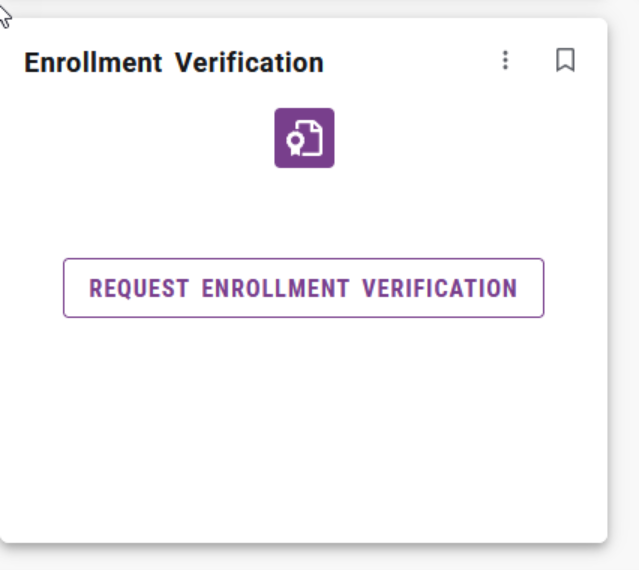
Fig. 1
REQUESTING YOUR LETTER
- From the drop down, select the Term you need for your enrollment verification (Fig 2).
- Select Create Enrollment Verification.
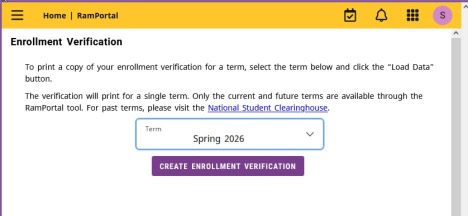
Fig. 2 - A message will appear indicating an enrollment verification is available for the selected
term (Fig 3).
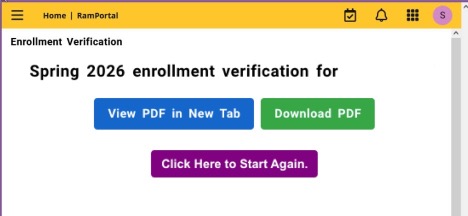
Fig. 3 - Choose one of the following options:
- View PDF in New Tab: Opens the verification letter in a new browser tab (Fig. 4). Depending on the PDF setting for your browser, you will be able to print, download, or save the document from the new tab.
- Download PDF: Downloads the verification letter to your computer.
- Click Here to Start Again: Returns you to the screen to select a different term for verification.
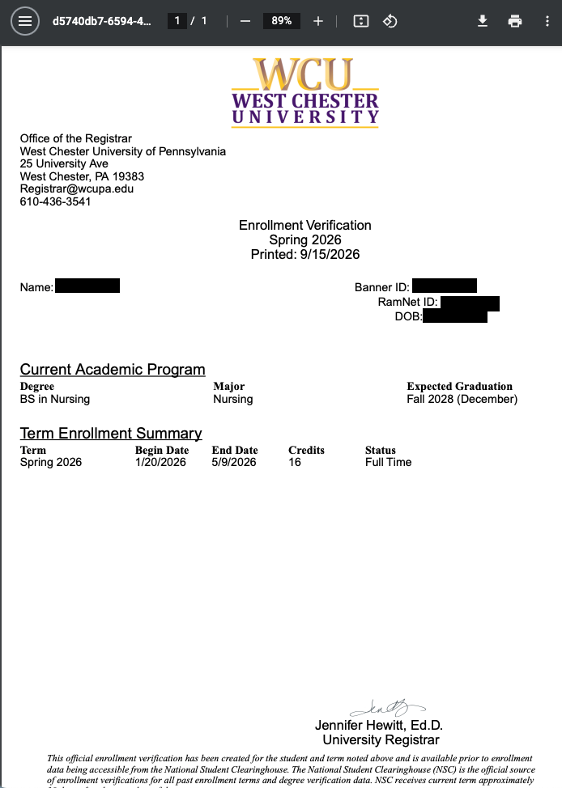
Fig. 4
WHAT THE LETTER INCLUDES
The Enrollment Verification Letter includes your credits and enrollment status for the selected term, along with the following:
- Student Name
- ID numbers and Date of Birth
- Current academic program (degree and major)
- Expected Graduation Date
- Selected Term dates, credits enrolled, and enrollment status
For support, please submit a ticket.