
Grading: Change of Grade Request
This guide provides instructions for faculty to submit a Change of Grade Request in RamPortal for courses from after the grading window has closed and grades have rolled.
| Contents |
|---|
| Navigation |
| Instructor Information |
| Select the Term and Course |
| Select a Student |
| Confirm and Submit |
| What Happens Next? |
| Grade Change Prior to Fall 2024 |
Navigation
- Login to RamPortal using your WCU Single Sign On (SSO) at ramportal.wcupa.edu.
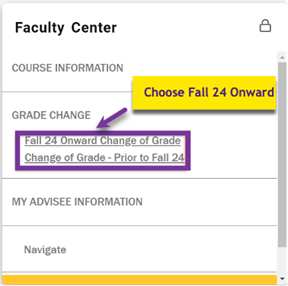
- Locate the Faculty Center card. Select Grade Change and Fall 2024 Onward.
Instructor Information
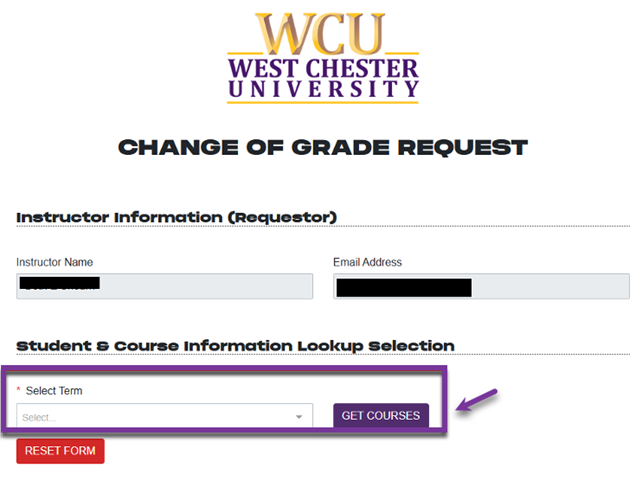
The instructor’s name and email will automatically populate at the top of the form
Select the Term and Course
- Under the Student and Course Information Lookup Section, choose the term from the drop down and click the Get Courses button.
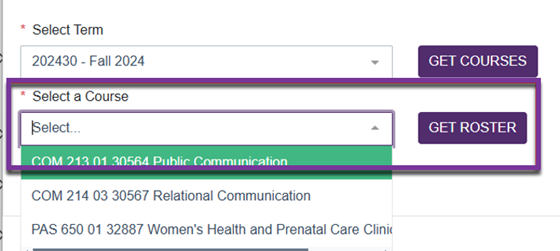
- From the Select a Course dropdown, choose the course the student was enrolled in and click Get Roster.
Note: For Courses prior to Fall 2024, a roster is not available. See the Grade Changes Prior to Fall 2024 section below for instructions.
Select a Student
From the Select a Student dropdown, choose the student whose grade you want to change and click Get Student Record.
If no students appear in the dropdown, this may be due to:
- Grades have not been rolled yet.
- You are looking at a lab or non-gradable section.
- There are no eligible students for grade changes in that course.
Confirm and Submit
- Review the information and click the Confirm Student, Course & Section button.
- Choose the New Grade, select a Grade Change Reason from the dropdown menu, and click Submit Grade Change Request.
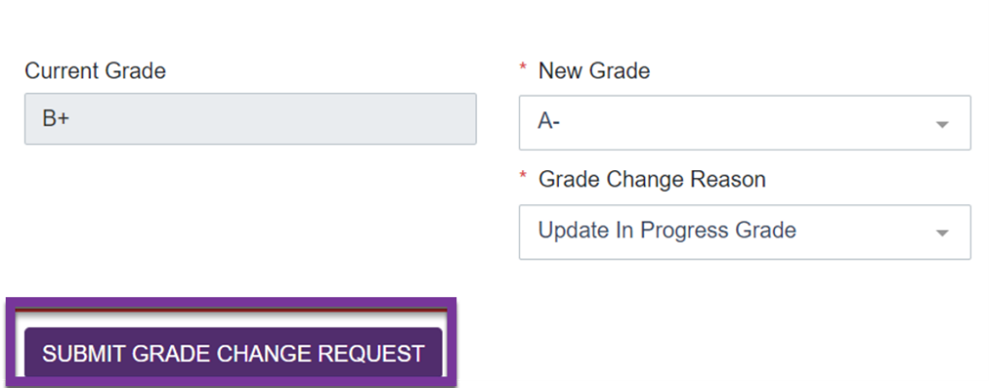
Image of New Grade, Grade Change Reason, and the Submit Grade Change Request button.
What Happens Next?
An approval request will be emailed to your Department Chair, and you will receive a confirmation email once your request is submitted.
Grade Changes Prior to Fall 2024
For grade changes prior to Fall 2024, follow the directions above with the following differences:
- Select Prior to Fall 24 on the Faculty Center card.
- Search for the student by entering the first letter of the student’s last name and click Get Students. There is no roster list available.

- Additional approvals will be routed to the Dean and Provost.
For support, please submit a ticket.