
Approved Program of Study Application Faculty Instructions
Audience: Approved Program of Study Faculty Reviewers
Purpose: This guide provides step-by-step instructions for faculty reviewers for accessing, reviewing, and processing post-baccalaureate teacher candidacy applications in OnBase Workflow.
| Contents |
|---|
| Accessing the Form |
| Review the Application |
Accessing the Form
- You will receive a notification in your campus email regarding this request. This notification will contain a link to OnBase.
- Select Login (Fig 1) and enter your campus credentials (Fig 2).
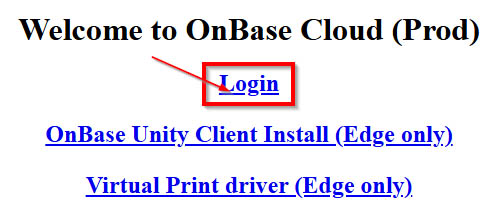
Fig 1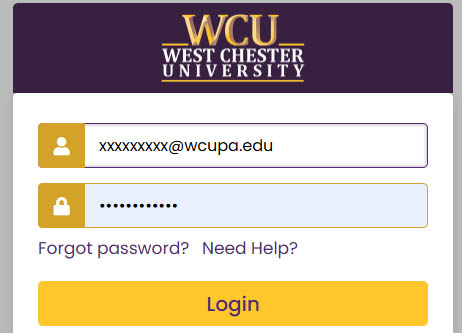
Fig 2 - The OnBase application will open in your browser.
- Select the square menu icon (Fig 3) in the top left corner of the application.
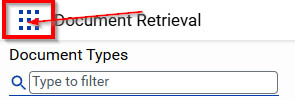
Fig 3 - The menu will open. Select Open Workflow (Fig 4).
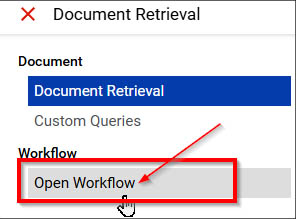
Fig 4 - A new window will open and all the workflow Life Cycles that you have access to will display. These forms are located in the CESW4 Post Bacc Candidacy Life Cycle.
- Select the drop-down arrow symbol next to that life cycle (Fig 5) and it will open to display the queues available.
CESW4 Faculty Review is the queue that these forms will be located in. The number of forms assigned to
you will be displayed at the end of the queue (Fig 6).
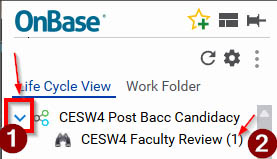
Fig 5 - Once you select the CESW4 Faculty Review queue (Fig 6), the forms assigned to you will be displayed on the right in the Inbox (Fig 6). Select an item in the inbox to display it in the document viewer panel below
(Fig 6).
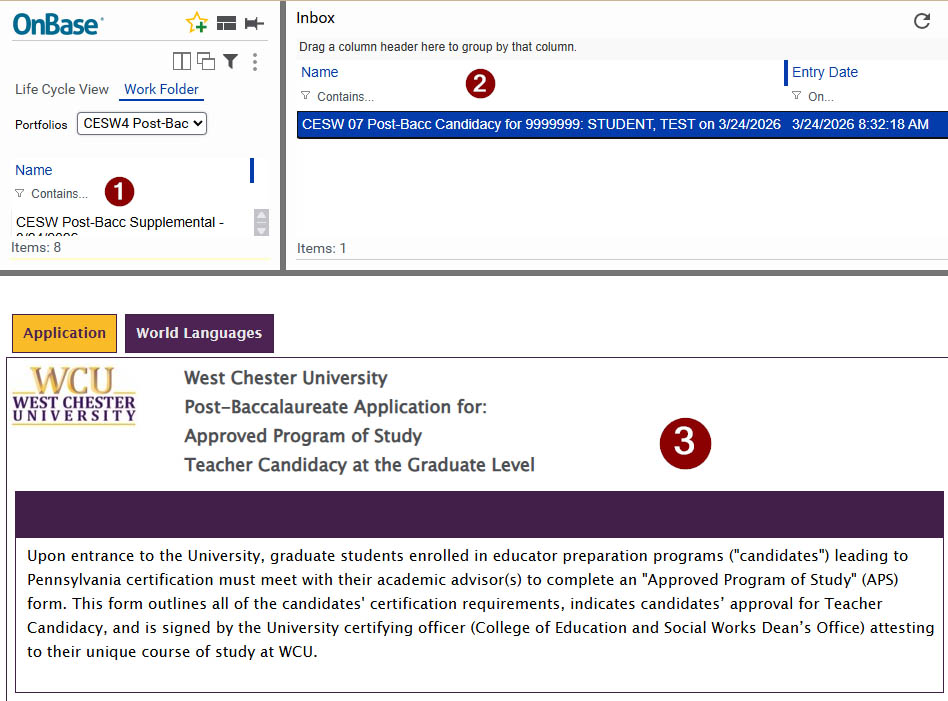
Fig 6
NOTE: If the document viewer panel is collapsed, you will not see the document. The grey bars separating the panels can be left-clicked and pulled to move them. To find the separator bars, hover your mouse over the gray lines on the screen; your mouse will switch from a pointer to a double arrow when hovered over movable panels. Left-click, hold, and drag the bar up to open the collapsed panel. (See Fig 7)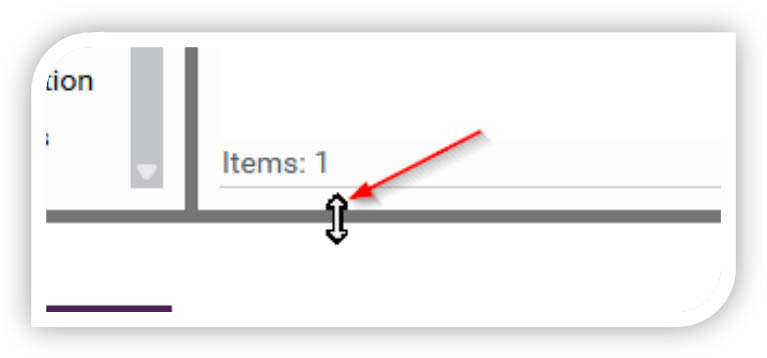
Fig 7
Review the Application
The selected form will open in the document display panel.
NOTE: There are two tabs on the form. The Application and the Course Requirements, which
is specific to the Certification Area the student selected. The Course Requirements
tab is highlighted in purple at the top of the form and contains required information
to complete the review (Fig 8).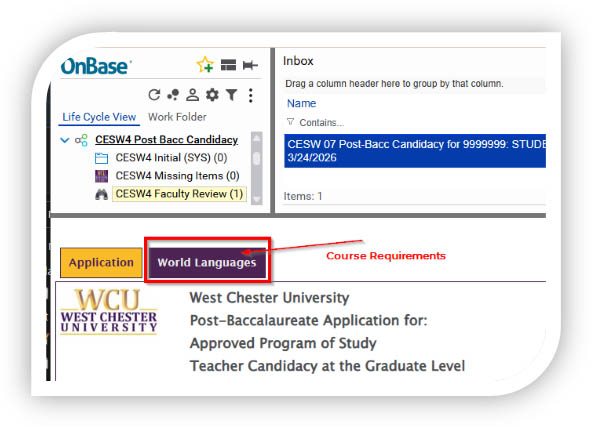
Fig 8
- Review the Student Information and Attachments on the form (Fig 9).
- Attachments can be opened by clicking on them.
- The number of attachments is displayed in the section.
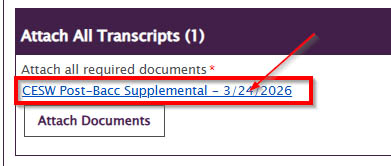
Fig 9
- In the Faculty Review section, you will find a reminder (Fig 11) to select the Course Requirements tab (purple tab at the top of the form) and identify the required courses (Fig 8).
- Select the Course tab and complete the course requirements (Fig 10).
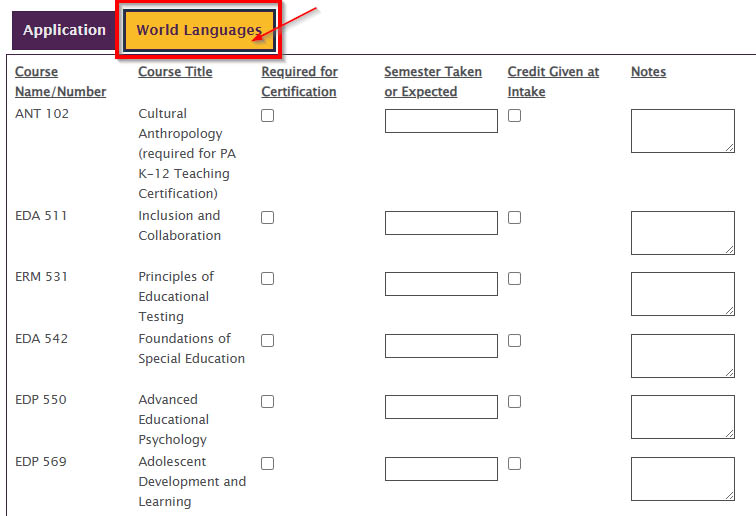
Fig 10 - Return to the Application Tab and scroll down to the Faculty Review section (Fig 11).
- Agree to the attestation that the course requirements have been completed
- Select your decision; your name and date will auto-populate
- Select Submit
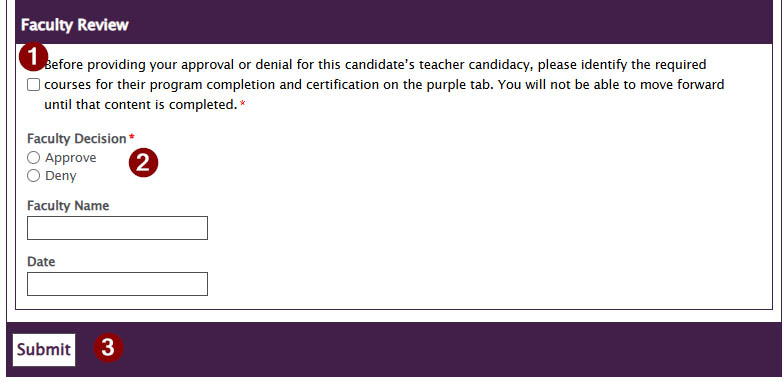
Fig 11
- The form is then routed to the Certification Officer for further review
If you have any questions regarding the request, please contact the College of Education and Social Work: cesw@wcupa.edu
For additional assistance, submit a ticket for support.